
AdflowKit documentation
Everything the AdflowKit studio can do, screen by screen: how a banner gets made, what you can change, which files you get and what costs a credit.
AdflowKit in short
- A web studio at dash.adflowkit.com that makes ad banners for Google Display, Performance Max and Meta Ads.
- You give it a website URL or one sentence about your offer. It writes the headline, description and CTA, generates a background scene and adds your logo and brand colors.
- One design is laid out again for 11 ad formats, from 300×250 to a 1080×1920 story.
- You fine-tune it in a visual editor and export JPEG, WebP or an animated HTML5 ZIP.
- 5 free banner packs, no card. After that, a monthly subscription or one-time credit packs.
Contents
- Quick start: from brief to ZIP
- What costs a credit
- Account and sign-in
- Creating a banner
- Customize: brand, sizes, layout
- Choosing a creative
- The banner editor
- Animated HTML5 banners
- Export and downloads
- Supported sizes
- Templates
- My creatives
- Billing and credits
- Profile and language
- Feedback and support
- Limits and what's not supported
- Troubleshooting
- Using AdflowKit with an AI agent
1. Quick start: from brief to ZIP
A complete run, start to finish, with what each step costs.
- Open dash.adflowkit.com/new. Under What are you promoting? type “Coffee roastery in Austin — 20% off holiday gift boxes, free delivery until Dec 20”, optionally add your website, and click Continue.
- On the brief, leave Headline and CTA empty so the AI writes them. Set Creative variations to 1. Open Customize and pick the Google Display preset.
- Click Create design options. The first creative is ready in about 15 seconds. 1 credit
- In Customize banner, change the headline or colors and click Apply changes. The panel shows No AI credit. free
- Click Continue to export and wait for “All 5 formats generated successfully”. free
- Click Download ZIP. You get every Display size in one archive. free
Total: 1 credit for a full Google Display pack. Each extra variation, AI background change or animation adds one credit.
2. What costs a credit
| Action | Cost |
|---|---|
| Generate one creative variation | 1 credit (all formats of the preset included) |
| Change the background with a prompt | 1 credit |
| Turn on animation for a static banner | 1 credit |
| Edit text, colors, logo, layout, CTA | Free |
| Open and edit a template copy | Free |
| Build all sizes on the export step, download files | Free |
| A generation that fails with an error | Free: the credit is returned |
The editor shows the price of a change before you apply it: a No AI credit badge for free edits, 1 credit otherwise.
3. Account and sign-in
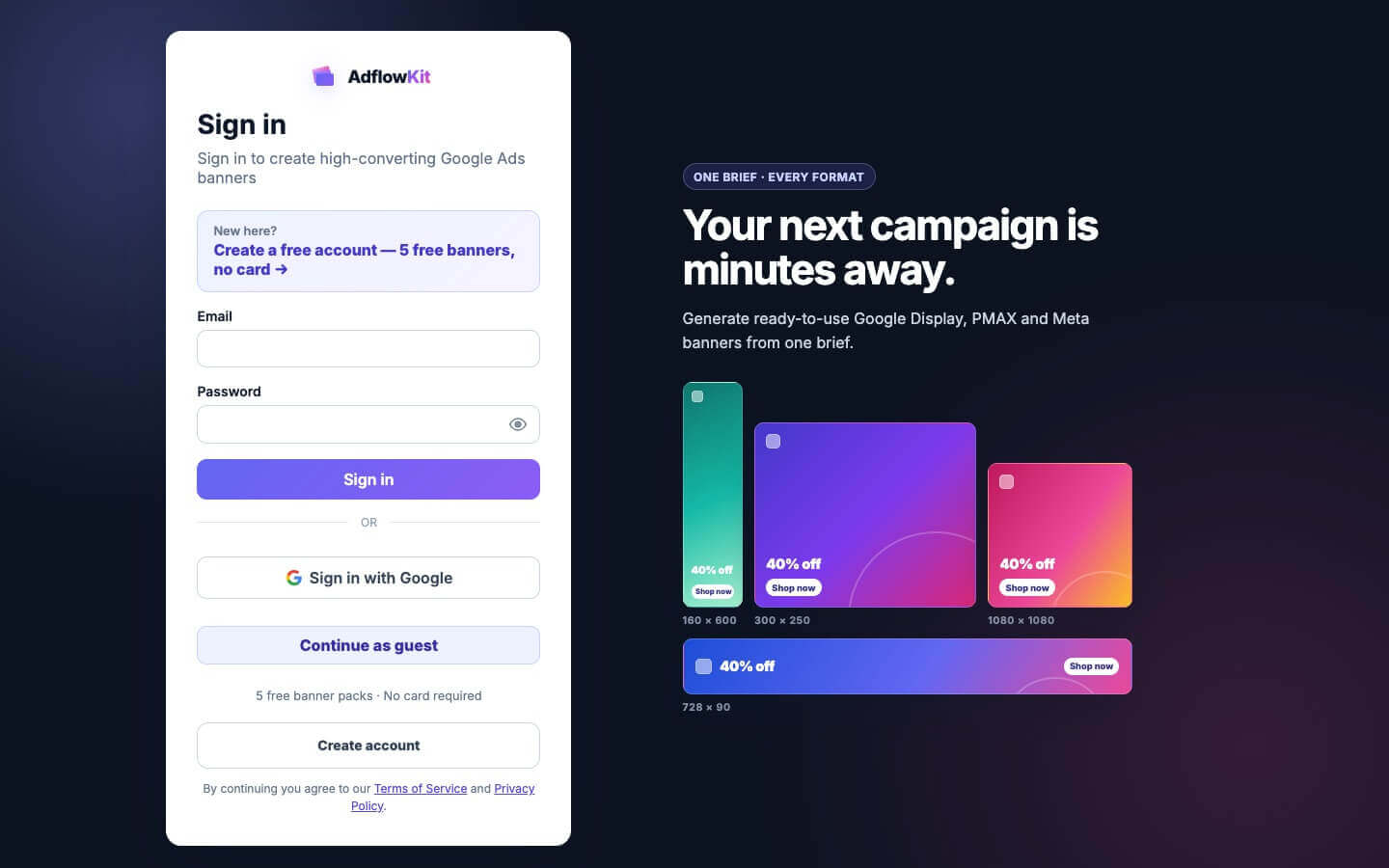
You can start without an account. Every way in leads to the same studio.
- Continue as guest. Opens the studio right away with free banner generations. No email or card. A guest can create up to 2 variations per attempt, and some options (more formats, CTA variations, animated exports) unlock after registration. When the free banners run out, you sign up and the banners you made move to your account. The guest demo is limited per browser and network, so it may be unavailable on a shared connection.
- Sign up with email. Enter your email, then a username and password (8–72 characters). We send a verification link. If it doesn't arrive, request a new one from the Resend verification page.
- Sign up or sign in with Google. One click, no password. In in-app browsers (Instagram, Facebook and similar) Google sign-in may be blocked: open the page in Chrome or Safari, or use email.
A new account gets 5 free banner generations. Your session is refreshed automatically while you use the studio. After a long break you may need to sign in again.
4. Creating a banner
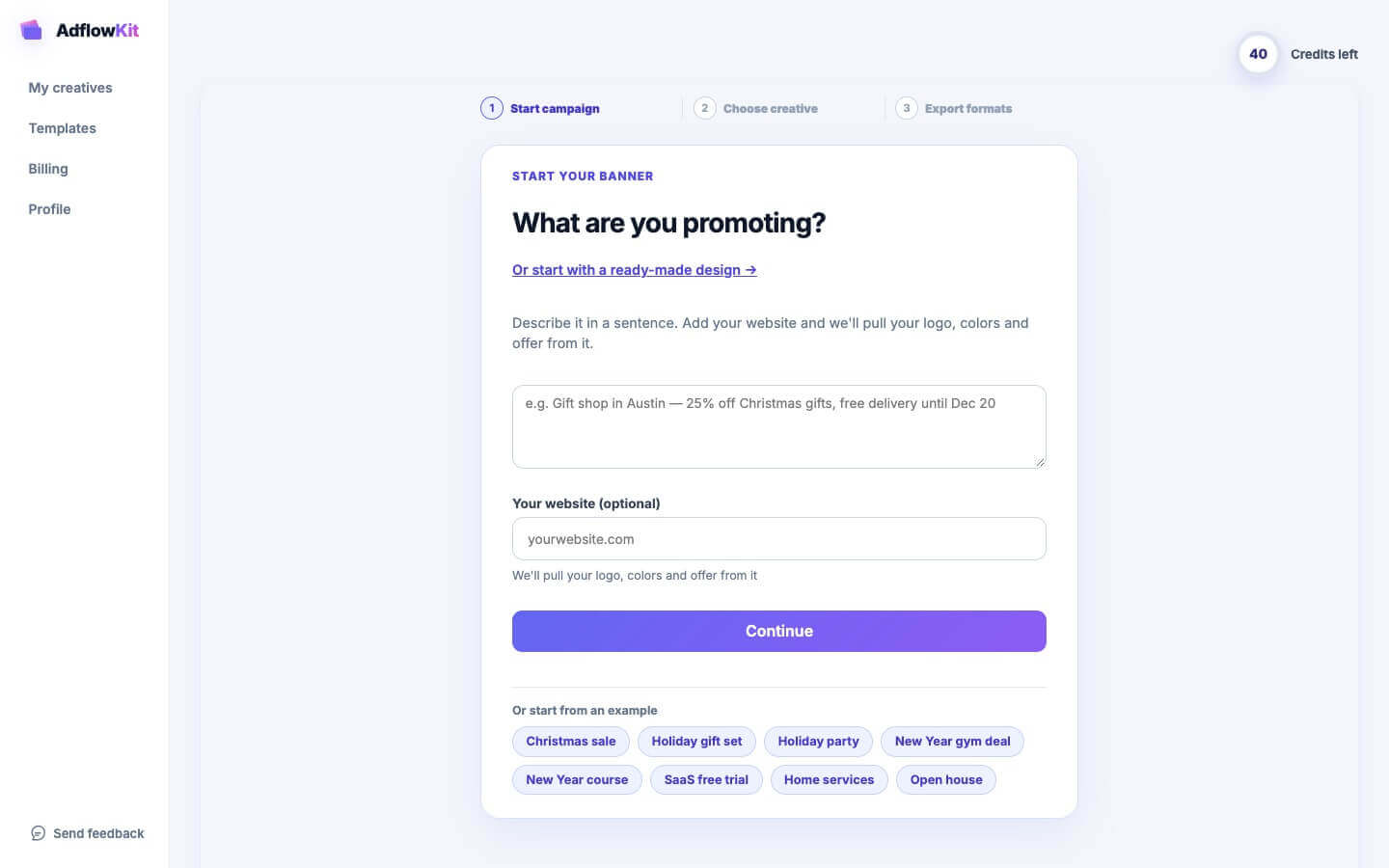
Open New banner (or start from the landing page). The studio walks you through three steps: Start campaign → Choose creative → Export formats.
- Describe what you're promoting. One sentence is enough, for example “Gift shop in Austin — 25% off Christmas gifts, free delivery until Dec 20”. You can write the brief in other languages too; check the preview before you export.
- Add your website (optional). AdflowKit reads the page and imports your logo, brand colors and offer. You can also start from a URL only.
- Or start from an example. Ready-made example briefs fill the form in one click.
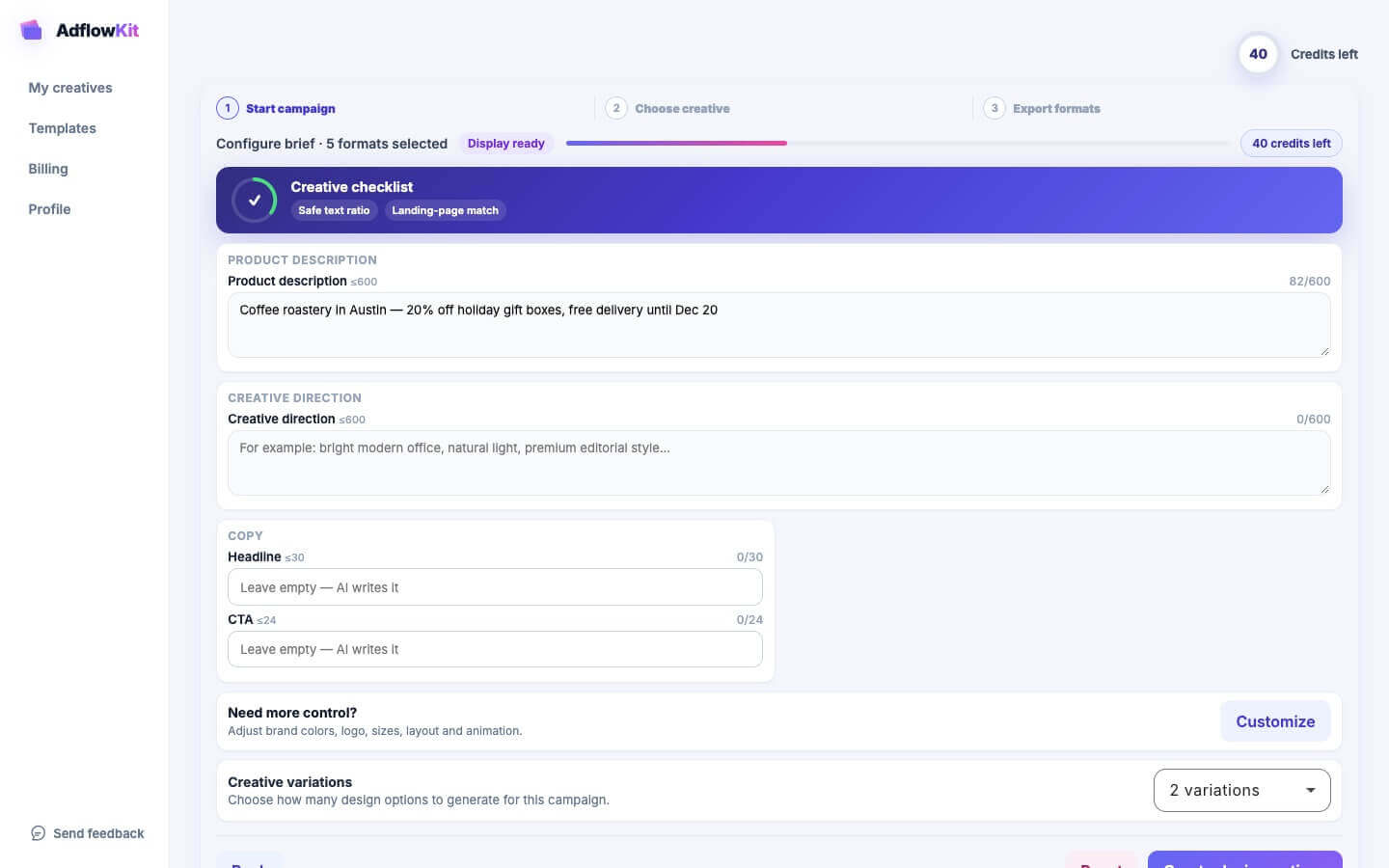
- Review the brief. Headline, description and CTA are drafted for you. Leave a field empty and the AI writes it. You can add an extra creative direction and a style or mood, such as “clean, professional”.
- Create. The first banner is ready in about 15 seconds. A short animation shows the background, product image and copy being assembled.
When the website can't be imported
Some sites block automated visitors, respond too slowly or sit behind a login. The studio then tells you what happened (blocked, timeout, page not found or unsupported) and you enter the headline, description and colors yourself, and upload the logo. If no reliable logo is found, the banner is made without one and you can upload it later.
Creative checklist
While you fill the brief, a score shows how complete it is: headline, CTA, description, brand colors, selected sizes and a source (URL or description). It's a quick reminder of what still helps the ad, not a prediction of results.
5. Customize: brand, sizes, layout
Click Customize under the brief for full control before you generate.
| Option | What it does |
|---|---|
| Creative variations | How many design options to generate: 1 to 3 (guests: 1 to 2). Each option costs one credit. |
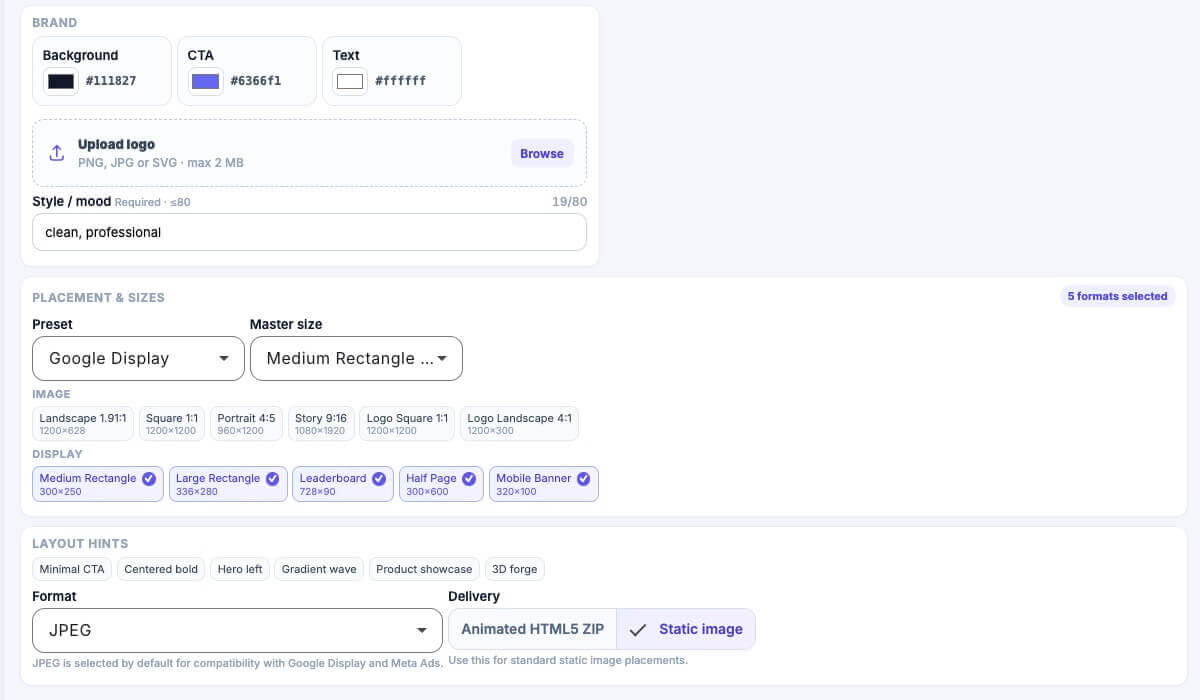
| Brand colors | Background, CTA and text colors with a color picker. Imported automatically from a URL. |
| Logo | Upload PNG, JPG or SVG up to 2 MB, replace it or continue without a logo. A transparent PNG works best. |
| Style / mood | A few words that set the look of the background, for example “warm, festive”. |
| Placement preset | All standard sizes, Google Display or Meta Ads. You can also toggle single sizes. |
| Master size | The size the first preview is built in. All other sizes are laid out from it. |
| Layout hints | Up to 5 composition styles: Minimal CTA, Centered bold, Hero left, Gradient wave, Product showcase, 3D forge. |
| Image format | JPEG (default, best for Google Ads and Meta) or WebP (smaller, for your own site). |
| Delivery | Static image or Animated HTML5 ZIP with Fade up, Slide left or CTA pulse. |
6. Choosing a creative
With more than one variation, the studio shows the options side by side and asks “Which design should we use for all formats?”. Each option can follow a different message angle: offer-led, urgency-led or social-proof-led, so you can A/B test real alternatives instead of near-copies.
- View full size opens a large preview.
- + Try another variant generates one more option (1 credit).
- Start over discards the banner and returns to an empty brief (asks for a second tap to confirm).
7. The banner editor
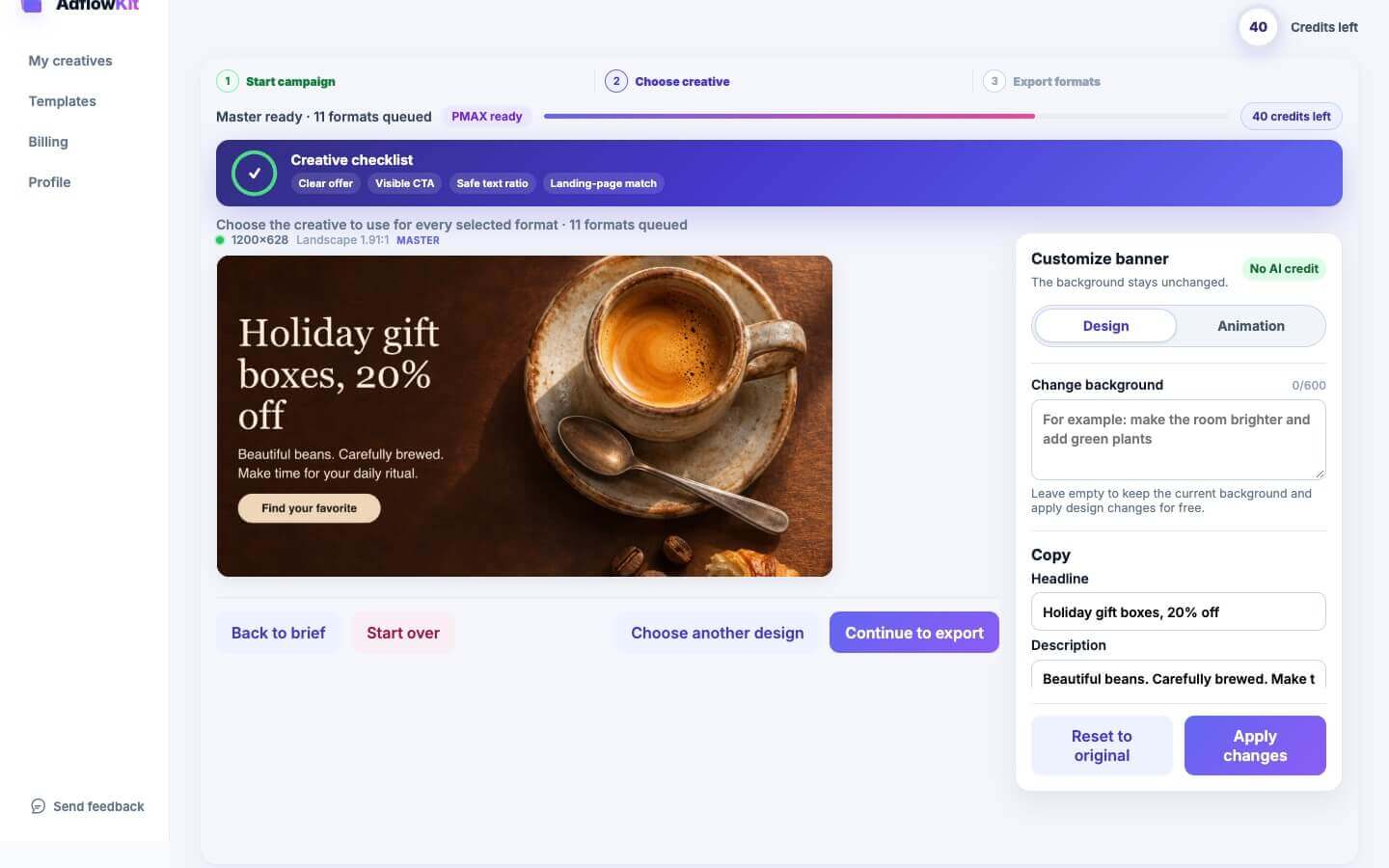
Select a variant to edit its text, colors, background or animation. Edit, then click Apply changes. Text, color and layout changes are free: the badge in the panel says No AI credit until you ask for something that costs one.
Design tab
- Copy: headline, description and button text.
- Colors: background, accent (CTA) and text color.
- Logo: upload, replace or remove.
- Show or hide the description, the CTA and the logo.
- Advanced layout: text position (left, center, right) and size; background darkening for readability; logo position (auto or any corner) and size; CTA size and shape (square, rounded, pill).
- Reset to original returns to the generated version.
Change background 1 credit
Describe how the scene should change, for example “make the room brighter and add green plants”. The current image is used as context, so you get a variation instead of a new random picture. Leave the field empty to keep the background and apply only your design changes for free.
8. Animated HTML5 banners
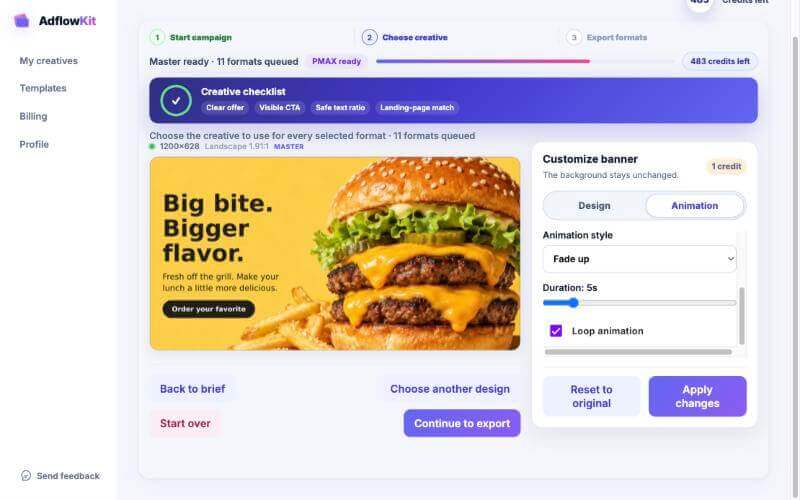
On the Animation tab, switch on Enable animation to export an animated, clickable HTML5 ZIP for Google Display. Applying animation to a static banner uses 1 credit; the editor shows the cost before you apply.
- Animation style: Fade up, Slide left or CTA pulse.
- Duration and Loop animation.
- Destination URL: the whole banner opens this link when clicked.
You preview the animation in the studio before export. Each ZIP holds one self-contained size and stays within Google's 600 KB HTML5 limit. Google Ads accepts HTML5 uploads only from eligible accounts; if yours isn't eligible, use the static JPEG.
9. Export and downloads
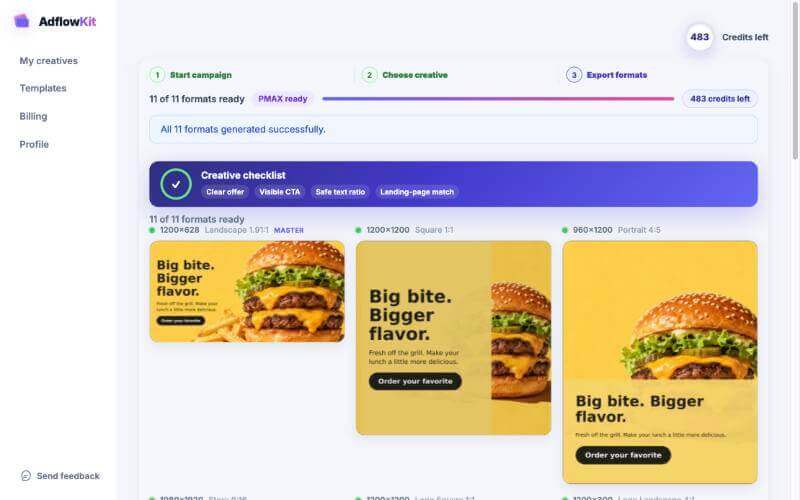
After you pick a design, Continue to export builds the same campaign in every selected size, with a progress bar (“11 of 11 formats ready”). This doesn't use extra credits. Each size is laid out again, not just scaled, and text stays inside safe zones.
- Download ZIP right on the export step: every size of the campaign in one archive.
- Regenerate all formats rebuilds the sizes after you changed the master design; Back to preview returns to the editor.
- Later, from My creatives: Download image for a single size (JPEG or WebP),
- Download HTML5 ZIP for a single animated size, and Download all as ZIP or Download all HTML5 ZIPs for the whole pack.
Files stay within platform limits: 150 KB for uploaded Display images, 600 KB for HTML5 ZIPs, 5 MB for Performance Max images. There is no watermark. You may use the banners in your own or client campaigns, including commercial ones. Because results are generated automatically, similar material may be produced for other users, so exclusive rights aren't guaranteed. See the Terms of Service.
10. Supported sizes
| Format | Size, px | Preset |
|---|---|---|
| Medium Rectangle | 300×250 | Google Display |
| Large Rectangle | 336×280 | Google Display |
| Leaderboard | 728×90 | Google Display |
| Half Page | 300×600 | Google Display |
| Mobile Banner | 320×100 | Google Display |
| Landscape 1.91:1 | 1200×628 | Meta Ads, PMAX |
| Square 1:1 | 1200×1200 | Meta Ads, PMAX |
| Portrait 4:5 | 960×1200 | Meta Ads, PMAX |
| Story 9:16 | 1080×1920 | Meta Ads |
| Logo Square 1:1 | 1200×1200 | All standard sizes |
| Logo Landscape 4:1 | 1200×300 | All standard sizes |
More on choosing sizes: standard banner ad sizes, Google Display banner sizes and Meta ad sizes.
11. Templates
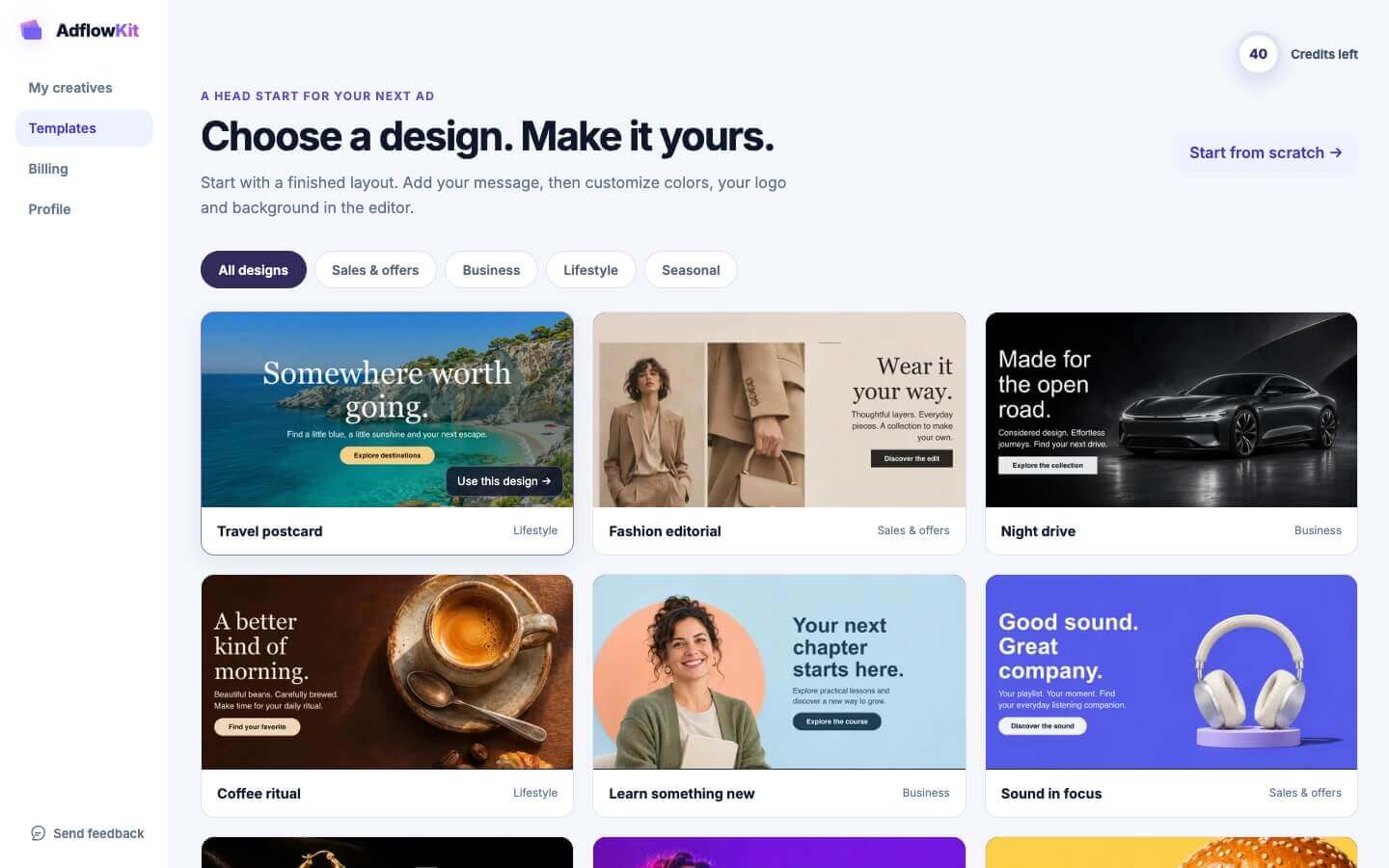
The Templates page is a gallery of about 30 finished designs (travel, fashion, food, SaaS, real estate, fitness, holidays and more), filtered by category: Sales & offers, Business, Lifestyle and Seasonal.
- Pick a design. The preview uses sample text.
- Add your message: headline (up to 30 characters), description (up to 90) and button text (up to 24).
- Open my banner in the editor. The design opens as your own copy, where you change colors, add your logo or ask the AI for a different background.
Creating and editing a template copy uses no AI credits. Only AI background changes cost credits. Prefer a blank brief? Use Start from scratch.
12. My creatives
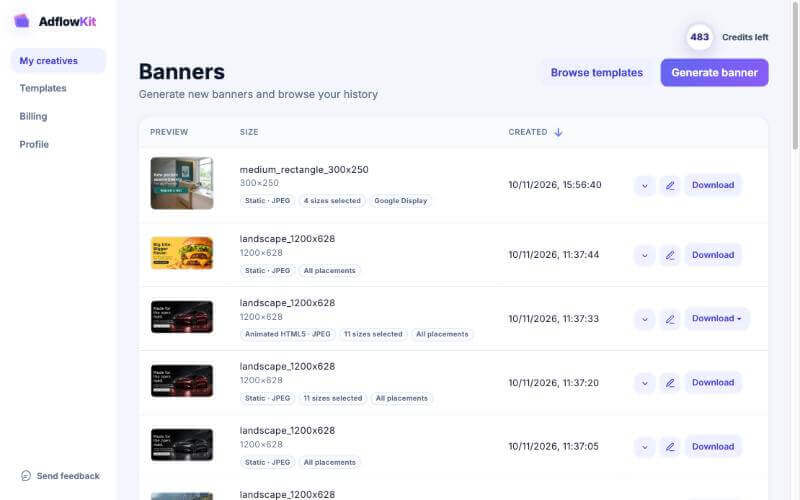
My creatives is the history of every banner you've made, newest first, with pages for long histories.
- A preview, the size and the creation date of each banner.
- Show generated formats expands every size that was made for that campaign.
- Campaign details shows the brief the banner was made from.
- Modify reopens the banner in the editor.
- Download a single image or HTML5 ZIP, or the whole pack as one ZIP.
Your banners are visible only in your account. How long data is kept is described in the Privacy Policy.
13. Billing and credits
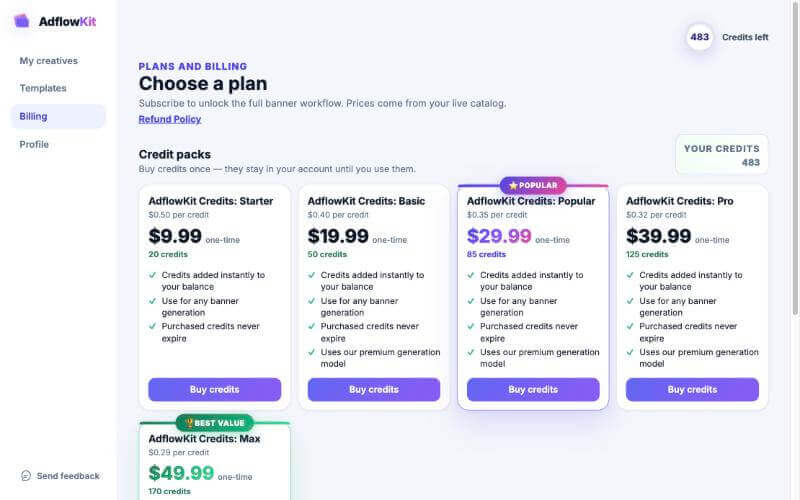
The credit counter in the top bar always shows your balance. What each action costs is listed in What costs a credit. When you have both kinds of credits, subscription credits are spent first, then purchased ones. Subscription credits reset each billing cycle; purchased credits never expire.
| Plan | Price | Credits |
|---|---|---|
| Free | $0 | 5 banner packs, no card |
| Monthly subscription | $9.99 / month | 30 every month, reset each cycle |
| Starter pack | $9.99 one-time | 20, never expire |
| Basic pack | $19.99 one-time | 50, never expire |
| Popular pack | $29.99 one-time | 85, never expire |
| Pro pack | $39.99 one-time | 125, never expire |
| Max pack | $49.99 one-time | 170, never expire |
- Subscribe or Buy credits opens a secure checkout by Dodo Payments (Merchant of Record), which handles invoices and VAT.
- The Billing page shows your current plan and when it renews.
- Cancel subscription any time: access continues until the end of the paid period. Resume subscription undoes a cancellation before it takes effect.
- If a payment fails, a banner asks you to update your card. Access stays open meanwhile.
Refunds: 14-day money-back guarantee for unused credits. See the Refund Policy.
14. Profile and language
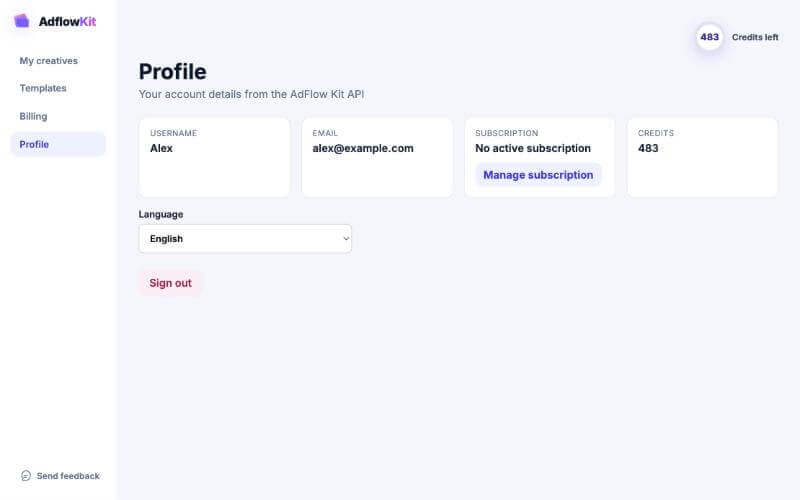
The Profile page shows your username, email, remaining free generations, credits and subscription status, with a link to manage the subscription. Here you also switch the interface language — English, German, Spanish or French — and sign out. The language is saved to your account.
15. Feedback and support
Send feedback in the side menu opens a short form for a question, a bug report or an idea, without leaving the studio. You can also email hello@adflowkit.com. We answer every message, usually within one business day.
16. Limits and what's not supported
| Item | Details |
|---|---|
| Variations per brief | Up to 3, one credit each |
| Logo upload | PNG, JPG or SVG, up to 2 MB |
| Template copy | Headline ≤ 30, description ≤ 90, button ≤ 24 characters |
| Guest variations | Up to 2 per attempt; registered accounts up to 3 |
| Banner languages | The brief and copy can be in other languages; always check the preview |
| Own background photo | Not yet. The background is generated; change it with a prompt |
| Team workspaces | Not yet. One account per person |
| Public API or MCP | Not yet. Tell us at hello@adflowkit.com if you need it |
| Direct publishing to Google Ads or Meta | Not built in. Download the files and upload them in the ad platform |
Questions about pricing, privacy and refunds are answered in the FAQ.
17. Troubleshooting
Generation seems stuck
A creative usually takes about 15 seconds, sometimes longer when the service is busy. Wait up to two minutes before doing anything. Don't click create again: a second click starts a second generation and uses another credit. Then open My creatives: if the banner is there, open it with Modify. If the generation failed with an error, the credit is returned automatically.
Only some sizes are ready
On the export step, sizes appear one by one until you see “11 of 11 formats ready”. If some stay empty, click Regenerate all formats, or go Back to preview and continue to export again.
The download doesn't start
Allow downloads for dash.adflowkit.com in your browser, and turn off extensions that block pop-ups or downloads. You can also download any banner later from My creatives with the Download menu.
The ad platform rejected a file
- Upload the JPEG files to Google Ads and Meta. WebP is for your own website.
- HTML5 ZIPs are accepted only from eligible Google Ads accounts. If yours isn't eligible, use the static JPEG.
- Check that you uploaded the right size for the placement. See Supported sizes.
- Policy reviews also look at your offer and landing page. More in why Google Ads disapproves banners.
Still stuck? Use Send feedback or email hello@adflowkit.com.
18. Using AdflowKit with an AI agent
AdflowKit has no public API or MCP server yet. An AI agent with a browser can use the web studio the same way a person does. A plain-text version of this page is at /llms-full.txt.
What the agent needs from the user
- A signed-in session in the browser. The user signs in; the agent should not handle passwords.
- What to promote: one sentence, and optionally the landing-page URL.
- Where the ads run: Google Display, Meta Ads or all sizes.
- Optional: headline (≤ 30 characters), description (≤ 90), CTA (≤ 24), brand colors, a logo file, static or animated.
- How many credits the agent may spend.
Steps and exact button names
- Open
https://dash.adflowkit.com/new. Fill the field under What are you promoting? and, if given, Your website (optional). Click Continue (on some accounts the button reads Create my banners and generates right away). - Wait until the brief shows Creative variations. Set copy fields if the user gave them. Click Customize to choose the Preset, sizes, colors and logo.
- Click Create design options (a guest sees Create my banner · ~15 sec). Wait until the preview with Customize banner and Continue to export appears.
- Make edits in the Design tab and click Apply changes. Before applying, read the badge: No AI credit is free, 1 credit is not.
- Click Continue to export. Wait for the text “N of N formats ready” or “All N formats generated successfully”.
- Click Download ZIP.
Checking the result
- The credit counter in the top bar drops by the expected amount.
- The banner appears at the top of My creatives (
https://dash.adflowkit.com/banners) with the expected size and labels, such as Static · JPEG and Google Display. - The downloaded ZIP holds one file per selected size.
Rules for agents
- Confirm with the user before any action that costs credits, and before any purchase or subscription change. Never enter payment details.
- Don't retry a generation automatically after a timeout. Check My creatives first; a retry spends another credit.
- Templates and design edits are free. Prefer them when the user only wants different text or colors.
Make your first banner pack
5 free banner packs. No card, and you can start as a guest.
Open the studio →